
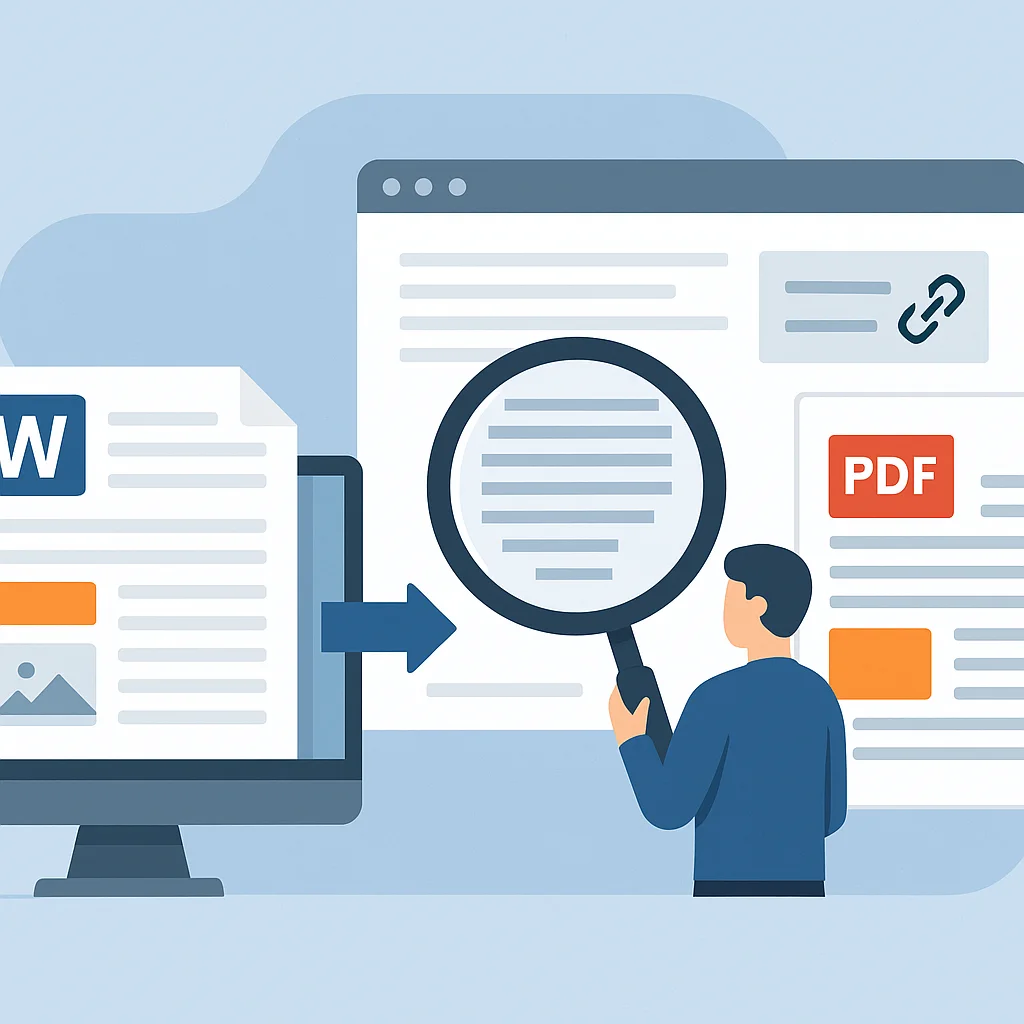
File conversion may seem straightforward in routine testing until a single document fails, which is why QA needs to look beyond a successful download. A converted PDF can open normally while still containing shifted text, missing content, broken links, or unreadable characters.
When a workflow depends on a file-to-PDF converter to turn office files, images, or other source documents into shareable PDFs, testers should evaluate the output against the original source, not simply whether the conversion finished. The core question is whether the PDF maintains the information, layout, and behavior users actually rely on.
Why Conversion QA Needs More Than a Visual Spot Check
A quick visual comparison can catch obvious issues, but conversion defects often hide in long documents, edge pages, interactive components, or uncommon character sets. QA should therefore compare representative samples across supported file types and include files that stress layout, fonts, images, links, forms, and page dimensions.
Testing also requires a clear definition of expected results. Some source behaviors may not have a direct PDF equivalent, while other features should be preserved. The test plan should specify what must remain intact, what may be flattened, and what should trigger a warning or a failed conversion.
Seven Conversion Failure Modes Worth Testing
Fonts Get Substituted and Layout Reflows
If a font is missing or unsupported, line lengths can change and content may shift to a new page. Headings may wrap differently, tables may expand, and aligned text can move. Testers should compare page count, line breaks, spacing, font appearance, and text near page boundaries.
Content Gets Clipped, Moved, or Dropped
Tables, text boxes, charts, headers, footers, and floating objects may shift during conversion. A document can include all pages while still losing a column or placing an object outside the visible area. QA should review crowded pages, layered objects, margins, and content near printable boundaries.
Images Lose Quality or Render Incorrectly
Images may become blurry, stretched, rotated, cropped, or displayed with incorrect transparency. This is critical for diagrams, signatures, screenshots, and branded material where visual changes can affect meaning. Compare image dimensions, orientation, sharpness, transparency, and position against the source. Small issues can become serious when images contain instructions or serve as evidence.
Links and Interactive Elements Stop Working
A PDF can look correct but still fail functionally. Hyperlinks may point to the wrong destination, bookmarks can be lost, and form fields may become static or behave differently than expected. When teams compare options using a rundown of PDF conversion tools before choosing a workflow, support for editing and post-conversion handling can help, but QA still needs to verify every interaction that matters in the final file.
Spreadsheets Produce Broken Pages
Spreadsheets are especially risky because a working sheet is not naturally page-based. Wide tables may split, charts can overlap cells, print areas might exclude data, and scaling may make text unreadable. Repeated headers and page orientation also require attention.
Characters and Languages Become Corrupted
Conversion should preserve Unicode text, accented characters, non-Latin scripts, symbols, and equations. Issues may appear only in certain fonts or specific pages, so multilingual tests should reflect realistic combinations. Copying text from the PDF can also reveal encoding problems.
Edge Case Files Produce Incomplete or Invalid Output
Large documents, damaged files, password-protected sources, unusual page sizes, and complex layouts should not result in silent partial output. The system should either generate a complete PDF or return a clear failure state. Verify file limits, error handling, page counts, and any leftover output.
Add Accessibility and Structure to the Test Scope
Visual accuracy is only one aspect of quality. Reading order, document language, link meaning, table structure, and field semantics can affect assistive technology even when the pages look correct.
The W3C guidance published in December 2025 describes how WCAG principles apply to non-web documents and software. This supports adding structural and accessibility checks for converted PDFs used in public or critical business workflows.
Use a Summary Matrix to Keep Coverage Consistent
A concise matrix ties each failure mode to a specific observable outcome rather than relying on general impressions.
Test the Result Users Actually Receive
Finally, QA should open the converted file in more than one common viewer. Search, text selection, printing, zooming, links, and form behavior can reveal issues that a single preview may miss.
Conversion testing is most effective when teams treat PDF output as a product, not a byproduct. A conversion should pass only when the resulting PDF preserves the information and behavior users actually need.